

Webless carries the transcript and page context into the provider, then sends
human replies back to the same visitor conversation.
How it works
Before you start
You need:- Admin access to the Webless Console workspace.
- Permission to install or approve apps in the provider.
- A destination for new handoffs: a Slack channel, Teams channel, or Webex Contact Center LiveChat target.
- One test visitor conversation to verify the full round trip.
Configure Webless
Open your site or index in Webless Console, then select Human Handoff. Turn on setup mode, choose where humans reply, and complete the provider steps.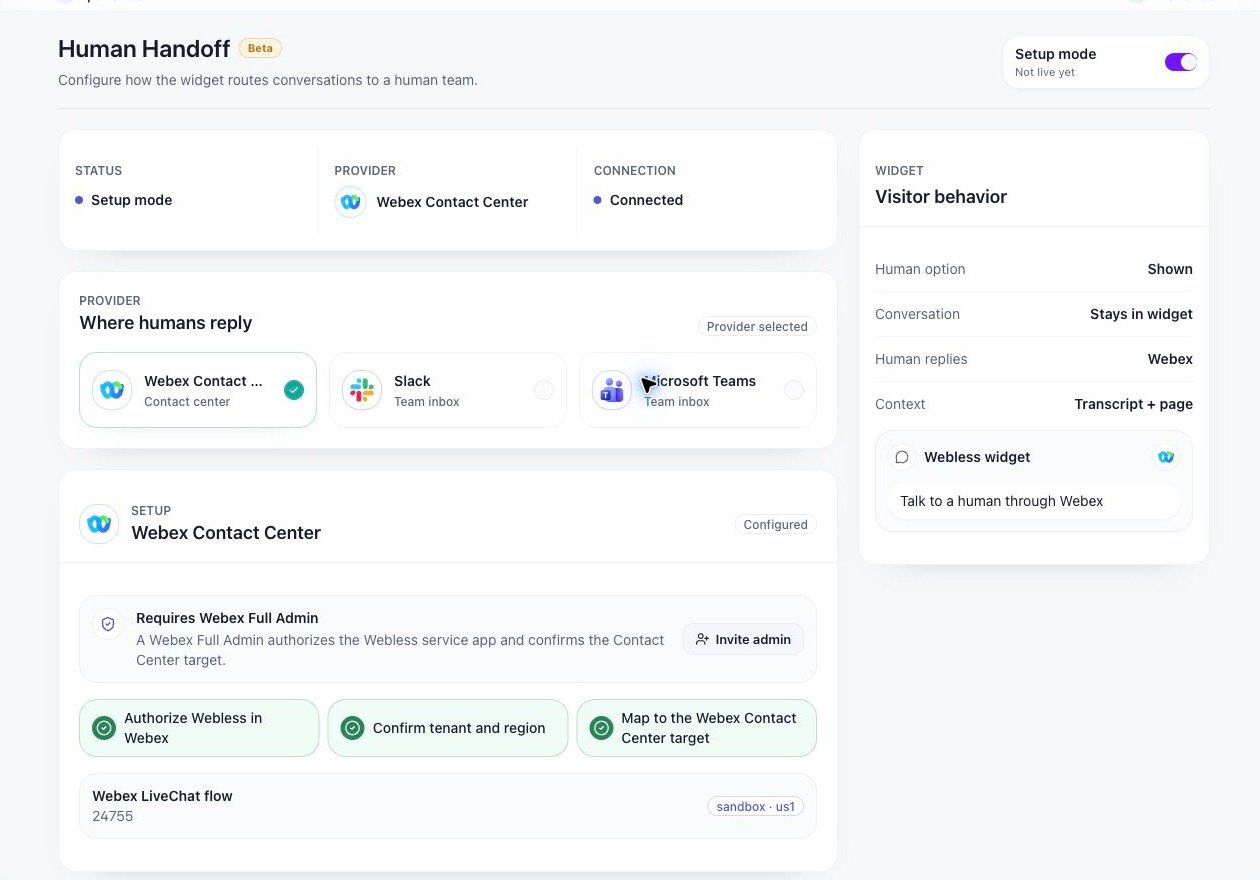
Enable human handoff
Turn on Human Handoff for the widget. Visitors only see the human option
after a provider is connected.
Choose a provider
Select Slack, Microsoft Teams, or Webex Contact Center.
Complete the provider setup
Finish each setup step until Console shows the provider as connected.
Run a real test
Start a widget conversation, ask for a human, reply from the provider, and
confirm the visitor receives the reply in the widget.
Slack
Use Slack when your team handles visitor conversations from a workspace channel.What you need
- A Slack workspace.
- Permission to install the Webless Slack app.
- A public channel, or a private channel where the Webless app has been invited.
Setup
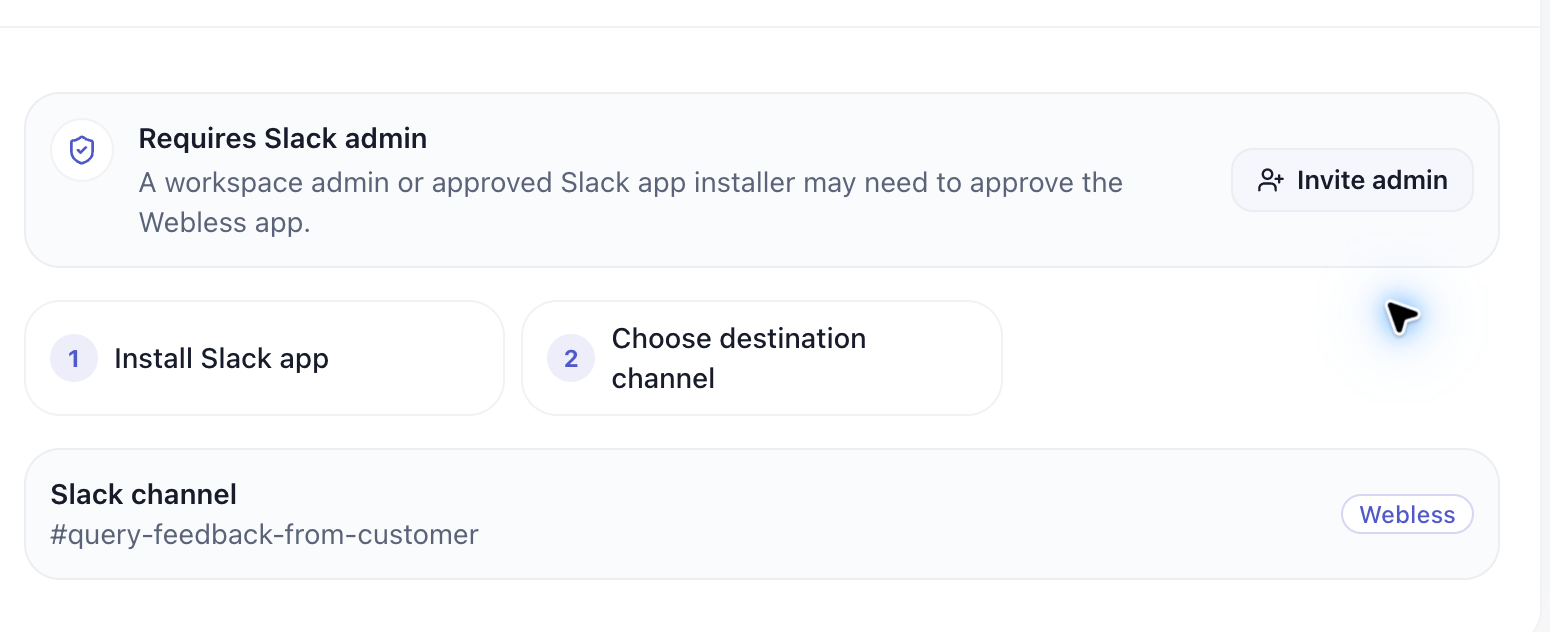
Connect Slack
In Human Handoff, choose Slack and click Connect Slack.
Approve the Webless app
Slack opens an authorization screen. Select the correct workspace and allow
the Webless app.
Choose the destination channel
Pick the channel that should receive new handoff conversations. For private
channels, invite the Webless app to the channel first.
Confirm setup
Console should show the Slack channel and mark the setup steps complete.
Microsoft Teams
Use Microsoft Teams when agents or teammates work from a team channel. A Teams tenant admin must install or approve the Webless app before the channel can receive handoff requests.What you need
- Microsoft Teams tenant admin access.
- The target team and channel.
- The setup code shown in Webless Console.
Setup
Start Teams setup
In Human Handoff, choose Microsoft Teams and click Connect
Teams. Webless generates a setup code and app package instructions.
Install the Webless app
In Teams admin center, upload or approve Webless Handoff, then add it to
the target team.
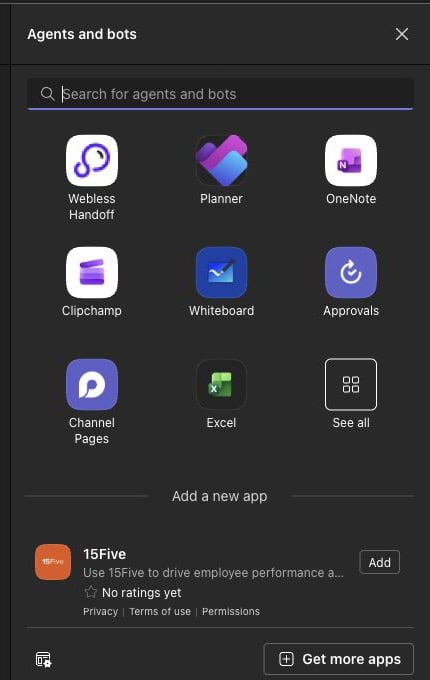
Verify the channel app
In the target channel, open Agents and bots. You should see Webless
Handoff in the app list.
Connect the channel
In the target channel, mention the bot and send:Replace
YOUR_SETUP_CODE with the current code from Webless Console.Send a test handoff
Trigger a handoff from the widget and reply from Teams. The reply should
appear in the visitor’s Webless widget.
Webex Contact Center
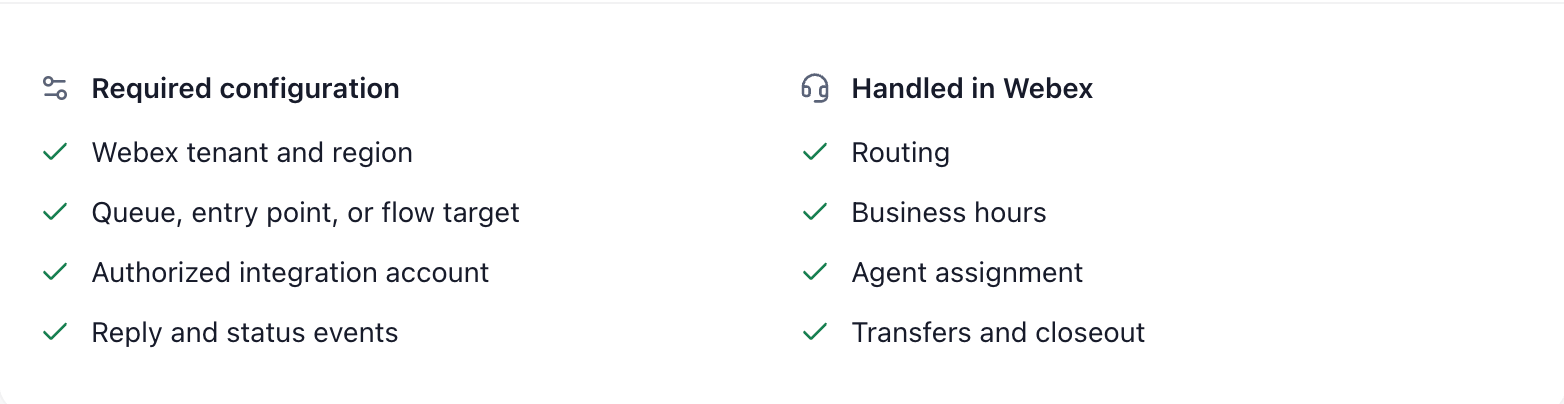
Use Webex Contact Center when routing, business hours, agent assignment, transfers, and closeout should stay in Webex. Webless does not replace Contact Center routing. Webless creates the bridge from the widget into Webex, then Webex owns the contact-center workflow.What you need
- Webex Contact Center admin access.
- Webex digital channels, Webex Connect, or Engage enabled for your tenant.
- A LiveChat asset for the website.
- A website domain added to that LiveChat asset.
- A Contact Center queue, entry point, team, or flow target for Webless handoffs.
- Agents who can accept and reply to the queued task.
For production, your Webex admin authorizes the Webless service app. You do
not need to create a separate Webex developer service app unless Webless
support asks you to for a sandbox test.
Setup
Authorize Webless
In Human Handoff, choose Webex Contact Center and authorize the
Webless service app from a Webex admin account.
Confirm tenant and region
Confirm the Webex tenant and region that should receive handoffs.
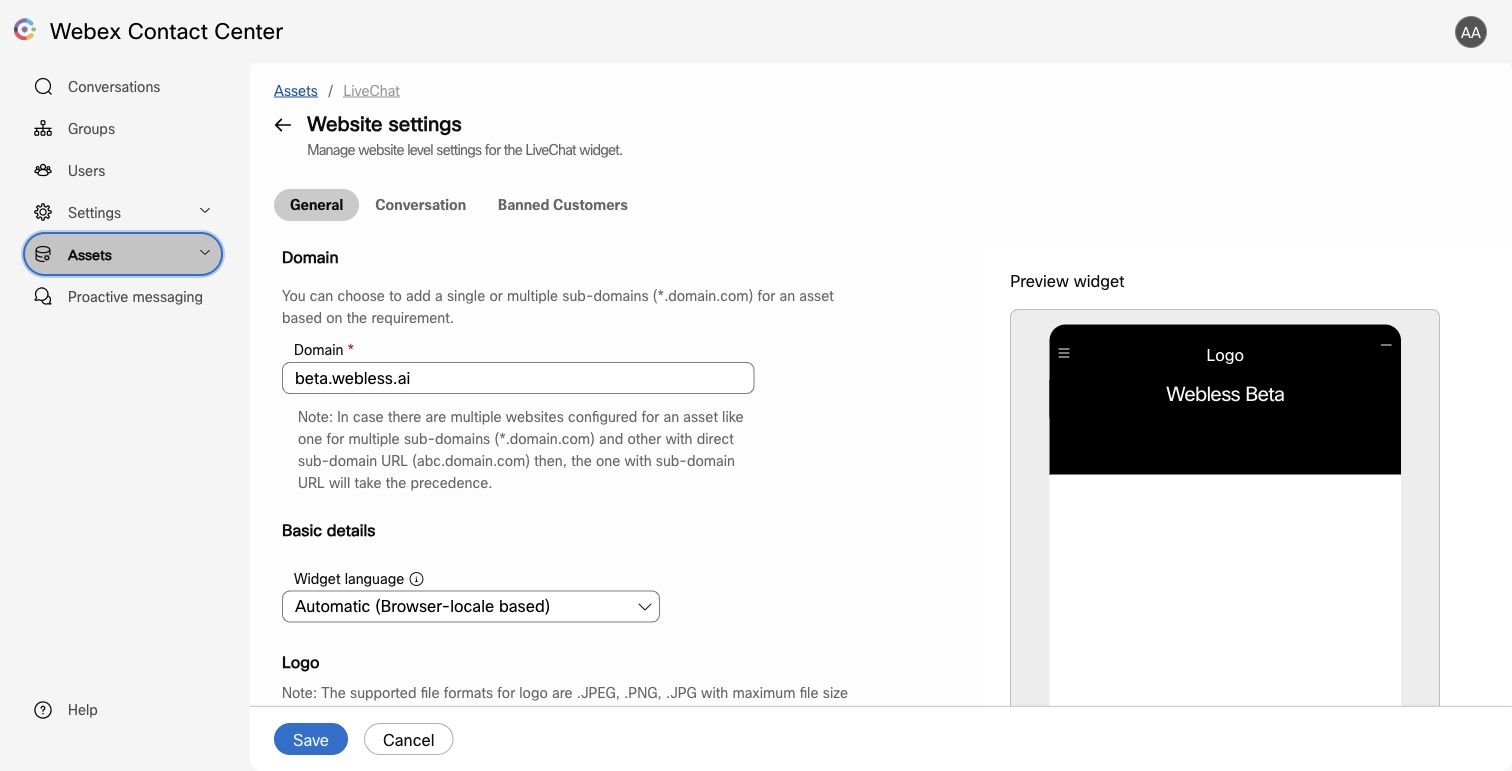
Create or select the LiveChat asset
In Webex Contact Center, use the LiveChat asset that represents the website
where the Webless widget runs.
Add the website domain
Add the exact website host to the LiveChat asset, for example
example.com or support.example.com. Do not include https:// or a path.Map the Contact Center target
Map the LiveChat asset to the queue, entry point, team, or flow that should
receive Webless handoffs.
Save the target in Webless
Return to Console and select the Webex target. The setup steps should show
as complete.
Test checklist
Before you turn handoff on for a production page, verify:- The visitor sees the human handoff option in the Webless widget.
- The provider receives the handoff with transcript and page context.
- A human reply from the provider appears back in the widget.
- Follow-up visitor messages continue to reach the provider.
- Closing or resolving the provider conversation behaves as expected.
- The destination is owned by the right team.
Troubleshooting
Visitors do not see human handoff
Visitors do not see human handoff
Confirm handoff is enabled in Webless Console and that the provider
connection is active.
Slack does not receive handoffs
Slack does not receive handoffs
Confirm the Webless Slack app is installed in the workspace. For private
channels, also confirm the app has been invited to the selected channel.
The Teams bot does not appear in a channel
The Teams bot does not appear in a channel
Ask a Teams admin to confirm Webless Handoff is uploaded, allowed, and
added to the target team. Then open Agents and bots in the channel and
search for Webless Handoff.
The Teams setup command does not connect
The Teams setup command does not connect
Make sure the message mentions
@Webless Handoff and includes the current
setup code from Webless Console.Webex accepts setup but no agent task appears
Webex accepts setup but no agent task appears
Confirm the LiveChat asset has the exact website domain, the Contact Center
target is mapped to a live queue or flow, and at least one agent can receive
that task type.
Webex reports the domain is invalid
Webex reports the domain is invalid
Open the LiveChat asset website settings and add the exact host where the
Webless widget runs. Use
example.com, not https://example.com/page.