

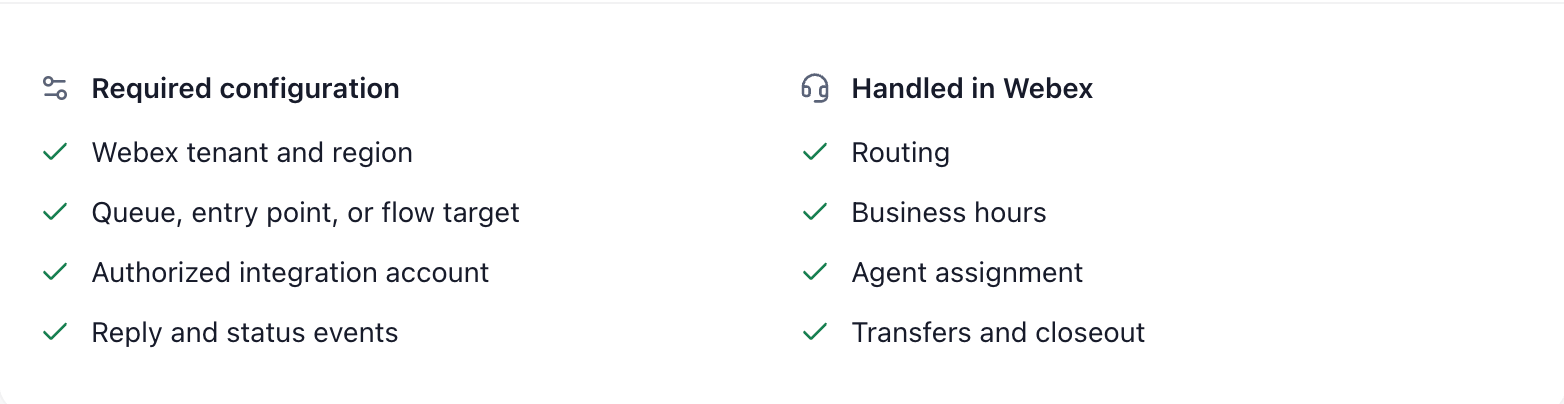
Webless creates the handoff and message bridge. Webex Contact Center still
owns routing, queues, business hours, agent assignment, transfers, and
closeout.
Before you start
You need:- An active Webless account with access to Webless Console.
- Webex Contact Center with digital channels enabled.
- A Webex Full Admin who can authorize the Webless service app.
- Webex Contact Center admin access to configure LiveChat or Web Chat routing.
- A website domain where the Webless widget is installed.
- At least one Webex Contact Center agent who can accept and reply to chat tasks.
Pricing and accounts
Webless pricing is managed through Webless. See Webless pricing or contact your Webless account team. Webex Contact Center licensing, digital channel access, and any Webex usage costs are managed by Cisco/Webex.Setup overview
Configure Webex Contact Center
Confirm digital channel access
In Webex Contact Center, confirm your tenant has digital channels enabled
and can create or use a LiveChat or Web Chat asset.
Create or select the LiveChat asset
Use the LiveChat asset that represents the website where the Webless widget
runs.
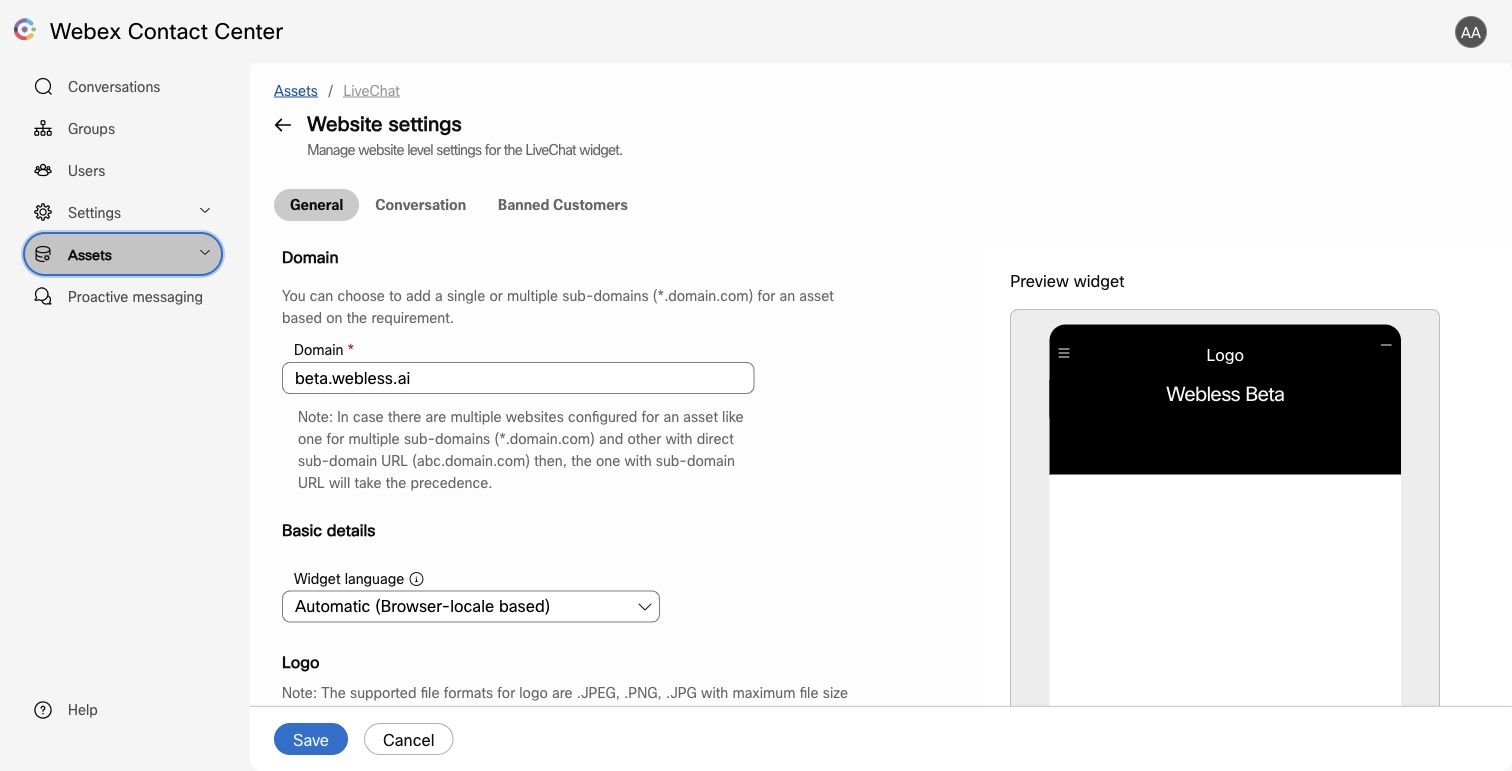
Add the website domain
Add the exact website host to the LiveChat asset, for example
example.com or support.example.com. Do not include https:// or a path.Map the routing target
Map the LiveChat asset to the queue, entry point, team, or flow that should
receive Webless handoffs.
Make agents available
Confirm at least one agent is assigned to the target queue or team and can
accept chat tasks in Webex Contact Center Agent Desktop.
Configure Webless
Open Human Handoff
In Webless Console, open the site or index that owns the widget, then select
Human Handoff.
Choose Webex Contact Center
Select Webex Contact Center as the provider.
Authorize Webless
A Webex Full Admin authorizes the Webless service app. This allows Webless
to create and manage the Contact Center handoff for your configured target.
Confirm tenant and region
Confirm the Webex tenant and region that should receive handoffs.
Select the Webex target
Choose the LiveChat, queue, entry point, or flow target that should receive
Webless handoffs.
Save and test
Save the configuration, start a visitor conversation from the Webless
widget, ask for a human, accept the task in Webex, and send a reply.
What Webless requests from Webex
Webless requests only the scopes needed to configure and operate the handoff bridge:Test checklist
Before enabling this for a production page, confirm:- The visitor sees Talk to a human in the Webless widget.
- Webless creates a Webex Contact Center task.
- A Webex agent can accept the task.
- The transcript and page context are visible to the agent.
- A Webex agent reply appears back in the Webless widget.
- Follow-up visitor messages continue to reach Webex.
- Ending the conversation in Webex closes or resolves the handoff as expected.
Troubleshooting
No Webex target appears in Webless Console
No Webex target appears in Webless Console
Confirm the Webex service app was authorized by a Webex Full Admin and that
the Webex tenant has Contact Center digital channels enabled.
The agent never receives a task
The agent never receives a task
Confirm the LiveChat asset has the exact website domain, the target is
mapped to a live queue or flow, and an agent is assigned and available for
chat tasks.
The visitor stays stuck on connecting
The visitor stays stuck on connecting
Check that the Webex queue or flow can route to an available agent. If no
agent is available or the Webex flow rejects the task, update the Webex
routing configuration and test again.